Preview Markdown in Finder with Quick Look
Select a file in Finder, press Space, and macOS shows you a preview.
For a .md file, out of the box, that preview is the raw text: every
#, every |, every **. Here is
how to make Space show rendered Markdown instead.
Why macOS shows Markdown as plain text
Quick Look previews are produced by extensions, and macOS ships one for
plain text but none that renders Markdown. A .md file is,
to the system, just text with an unusual extension. Rendering it takes a
Quick Look extension from a third-party app: once one is installed and
enabled, Space in Finder, the Preview pane in a Finder window, and the
big icon previews all show the rendered document instead of the source.
The options
Free: QLMarkdown
QLMarkdown is a free, open-source app that exists only to provide this extension, and it does the job well. Download it, launch it once so macOS registers the extension, enable it when asked, and Space renders Markdown from then on. If Quick Look previews are the only thing you want, install this and you are done.
Bundled with a viewer
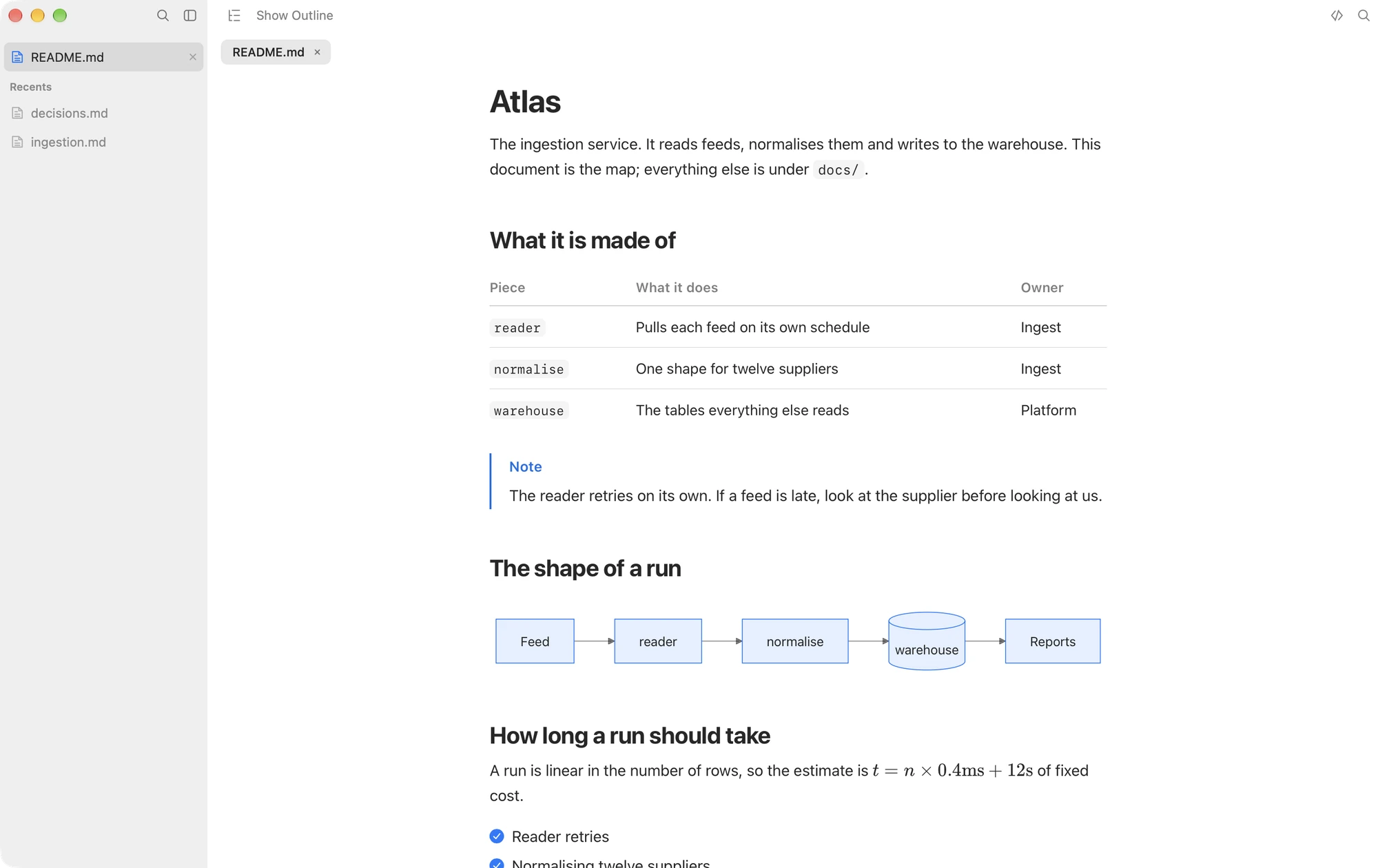
Several Markdown viewers ship a Quick Look extension alongside the app, so the preview on Space and the document in the app render the same way. The free viewer mdown includes one, and so does Macaroni: its extension renders the same GitHub Flavoured Markdown the app does, tables, task lists, alerts and highlighted code included, so the two-second glance in Finder and the working session in the app agree about what the document looks like.
Enabling the extension
- Launch the app once. macOS only registers an app's extensions after the app has run, so a freshly installed app whose extension seems missing usually just has not been opened yet.
- Check it is switched on. In System Settings, search for Extensions, open the Quick Look section, and make sure the one you want is ticked. On recent macOS this lives under General > Login Items & Extensions.
- If two extensions fight, macOS picks one per file type. Untick the ones you do not want so the winner is the one you chose.
If the preview still shows plain text
- Quick Look caches aggressively. Closing the preview and pressing Space again is usually enough after enabling an extension; logging out and back in settles the stubborn case.
- Check the file's extension is one the extension claims.
.mdand.markdownare safe everywhere; rarer ones such as.mdownor.mkddepend on the app. Macaroni's extension claims the nine common Markdown extensions, and deliberately not.txt, so plain text files keep their plain preview. - A file inside some app sandboxes or on a network volume can decline to preview; try duplicating it to the Desktop to rule the location out.
What Quick Look is for, and what it is not
Space in Finder is the right tool for the two-second question: is this the file I think it is, does it have the section I need. It is the wrong tool for a reading session: no outline to navigate with, no search, no way to follow a document that is still being written. When the glance turns into actual reading, press Return instead of Space and let a real viewer open it. If the documents you are glancing at were written by an AI agent and change while you work, that is the exact case the reading-window guide covers.
Macaroni is a fast, read-only Markdown viewer for macOS with a Quick Look extension included: the same rendering on Space in Finder and in the app, plus a watched folder, a changed feed and a diff since you last read. $14.99, one time, no subscription.
See what it does